









Inventory Tracker Excel Template
5,00 $
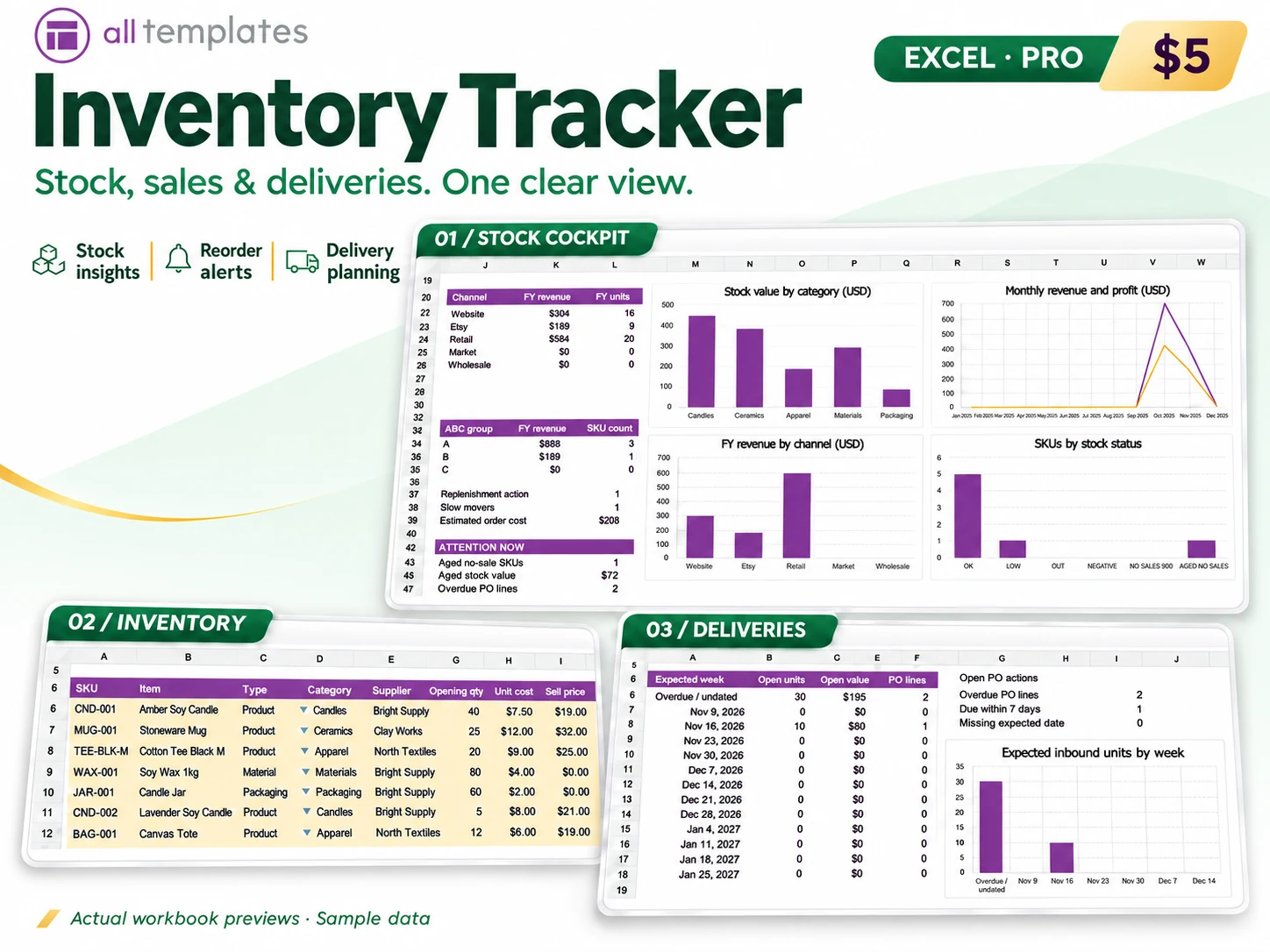
Track stock, purchases and sales in Excel with a visual cockpit. Pro adds SKU insights, aged no-sales alerts, a 12-week delivery schedule, replenishment, 20 locations, BOM and transfers. Full Pro edition: $5.
- AI-friendly. Give a file-capable AI agent a copy and your source material. Ask it to fill the labeled inputs and check the result before using it.
Free downloads vary by product. See the description below for exactly what is included, or get the complete Pro version.
Get the complete, ready-to-use version with all features — for the price of a cup of coffee
Inventory Tracker Excel Template with Visual Cockpit
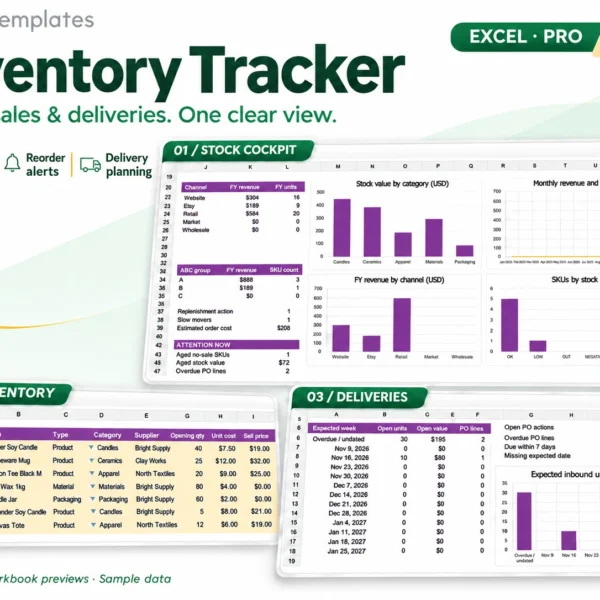
Track products, purchases, shipped sales and stock movements in one editable Excel workbook. Inventory Tracker v3 puts stock health, sales, replenishment and upcoming deliveries in a visual cockpit.
Try the free version
Free includes 100 SKU rows, 200 rows per transaction log, working stock formulas, a four-chart cockpit and the original dashboard. All 17 tabs remain visible. Eight Pro tabs contain upgrade panels rather than operational data, so you can see the full workbook structure before upgrading.
Full Pro edition: $5
- Visual cockpit: seven charts covering stock health, sales and operational priorities, plus two dashboard charts and a delivery schedule chart.
- 1,000 SKU rows and 20 locations: track products, variants, materials and packaging.
- SKU insights and replenishment: review low-stock signals, sales-based stock coverage and suggested purchases, accounting for open purchase orders.
- Aged no-sales watch: flag positive stock with an old first-stocked date and no shipped sales in the selected window. The default age threshold is 180 days and can be changed.
- Delivery schedule: enter expected dates per purchase line, see overdue or undated open orders, and review incoming units across 12 weeks.
- Purchases and sales stages: separate ordered quantities from actual receipts and shipments.
- Production and bill of materials: completed runs add finished goods and deduct components.
- Transfers and vendors: move units between locations without changing total company stock; maintain supplier contacts and lead times.
How it works
- Replace the fictional sample data and add each unique SKU, cost, opening quantity and location.
- Record actual purchase receipts, shipped sales and signed stock adjustments.
- Enter first-stocked dates and expected purchase dates for age and delivery signals.
- For handmade products, define the BOM and record completed production runs. Use Transfers for location moves.
- Review the Cockpit, Insights, Replenishment and Delivery Schedule to decide which items need attention.
Use cases
The free workbook covers a smaller single-location stock workflow with working formulas. Pro adds the larger SKU capacity, multiple locations, production, transfers and vendor details referenced below.
- Small business inventory tracking: keep a SKU list and record stock received, stock shipped and manual adjustments in one Excel workbook instead of maintaining disconnected counts.
- Low-stock and reorder planning: review alerts and suggested purchase quantities, including open orders that have not arrived yet. Use lead times and vendor details in Pro when planning replenishment.
- Purchase and sales order follow-through: distinguish an order placed from goods received, and a sale recorded from units shipped. Only the actual receipt or shipment changes on-hand stock.
- Multi-location stock control: use Pro to see where inventory sits across up to 20 locations and record transfers without changing the company-wide total.
- Handmade products and kit assembly: define component quantities in the Pro bill of materials, then log completed production runs to add finished goods and deduct materials.
- Stock and sales reporting: use the dashboard to review stock value, fiscal-year sales, category value and estimated gross profit. These are planning estimates based on current unit costs, not historical accounting valuations.
- Manual ecommerce stock reconciliation: enter transactions exported or checked from a store or point-of-sale system. The workbook does not automatically sync with Etsy, Shopify or other platforms.
Planning limits
The aged no-sales signal identifies stock to review; it does not prove an item is unsellable. Missing first-stocked dates leave that signal blank. The workbook does not model lot-level age, expiry, seasonality or demand forecasting. Use separate purchase lines for split deliveries with different expected dates.
Stock value and gross profit use the current SKU unit cost and are planning estimates, not historical accounting valuations. The workbook has no macros and does not automatically sync with Etsy, Shopify or a point-of-sale system. Formula results and charts were checked in the exported XLSX; desktop Excel and Google Sheets import have not been independently checked for v3.
Format: editable .xlsx. Replace all sample entries with your own data. Read our practical inventory guide for SKU, replenishment, location and production workflows.
Try it with a worked example
Count one item with movements on both sides of the ledger: 20 units at opening, eight received and five issued gives an expected 23. If the physical count is 22, check the source documents before entering a one-unit adjustment.
All you need to know about inventory trackers
Before building the spreadsheet, set a cutoff and count stock by SKU and location. Use the movement log to explain every balance, then separate what you physically hold from what you can promise to customers.
Set up reliable stock records
- Define what stock you need to track. List the decisions the tracker must support, such as shipment availability or replenishment by location. Decide which locations, item statuses and stock owners should be in scope.
- Give every variant its own SKU. Use a stable internal identifier for each variant you manage separately. Keep retailer or GS1 identifiers in separate fields so a change in external labeling leaves the stock history intact.
- Set a base unit of measure. Choose pieces, cases or another base unit per SKU. Store supplier pack sizes separately and convert receipts before they affect stock totals.
- Start from a physical count. Record starting quantity by SKU and location at a clear cutoff. Post later movements from that point so opening stock and receipts do not overlap.
- Log movements as transactions. Keep a row per event with date, SKU, location, quantity, movement type and a source reference such as an order number. Derive balances from the log.
Handle everyday movements
- Separate location from stock status. Distinguish shelf, warehouse and transit locations. Track whether units are sellable, reserved or under inspection so a headline total cannot be mistaken for availability.
- Post both ends of transfers. Reduce stock at the origin and add it at the destination when received. Use an in-transit location if the transfer takes time and track both ends with one reference.
- Distinguish purchase orders from receipts. A purchase order changes expected supply. Increase on-hand stock only when goods are received and recorded.
- Track split shipments separately. Record the expected and received quantity for each delivery. This lets you see what is overdue without treating a partial receipt as a complete order.
- Give returns an inspection step. Receive returns into a holding status, check their condition and move only sellable units into available inventory. Record damage or disposal as a separate adjustment.
Plan replenishment
- Measure lead time to usable stock. Measure from order placement to the point inventory can be sold. Account for transit, receiving and inspection when those steps affect availability.
- Calculate a reorder point by SKU. Add expected demand during replenishment lead time to safety stock. Use the same time units for demand and lead time, and revisit the inputs after supply changes.
- Choose safety stock based on variability. Use delivery reliability, demand swings and the impact of a stockout when deciding on a buffer. Review seasonal and high-risk items separately.
- Calculate purchase quantity separately. Estimate how much you need to reach a target stock level. Check timely incoming units, committed orders, supplier minimums and packaging increments before issuing a purchase order.
- Look at arrival dates before relying on open orders. Compare the next delivery date with the date stock is likely to run out. Escalate late orders, arrange a transfer or check an alternate supplier as appropriate.
Catch errors and improve control
- Track kits and components separately. Maintain a bill of materials with quantities per kit. Check the limiting component before promising kits and record component consumption at assembly.
- Investigate negative inventory. Review late receipts, duplicate sales, wrong location and unit-conversion errors before posting corrections. Keep the original transaction and add a documented adjustment.
- Cycle-count high-risk items more often. Prioritize items by value, stockout impact and discrepancy history. Count a subset on a recurring schedule and investigate differences before adjusting the balance.
- Review items with no recent sales. Compare time since the last sale with seasonality, launch date and stock availability. Decide whether to retain, transfer, discount or stop replenishing the item.
- Test the workflow before scaling up. Run one SKU through a receipt, sale, transfer, return and count adjustment. Check quantities after each step and assign someone to review exceptions.
Frequently asked questions
What is an inventory tracker?
It records how stock changes by item and location. A useful tracker can explain the current balance from receipts, shipments, transfers and adjustments.
Is a SKU the same thing as a GTIN or UPC?
A SKU is an internal identifier. A GTIN identifies a trade item across organizations. UPC-A is a barcode format that can encode a GTIN-12. Keep whichever identifiers you use in dedicated fields.
What is the difference between on hand and available to sell?
On hand is what you physically hold. Available to sell excludes units already committed or unavailable, such as damaged stock. Define which statuses your team subtracts.
How do I track the same SKU across two warehouses?
Keep one item record and a separate balance per location. Record each transfer as a linked outbound and inbound movement and use an in-transit status where needed.
How should I record a supplier order that arrives in two shipments?
Record each receipt against the same purchase order and keep the outstanding balance with its own expected date. This prevents the first receipt from hiding a late second shipment.
How do I set a reorder point when I have little demand history?
Start with a documented demand estimate, measured supplier lead time and a provisional buffer. Review the estimate after several cycles and adjust for stockouts that suppressed recorded sales.
Do I reorder if stock is low but a purchase order is already open?
Compare expected demand and committed stock with the quantity and arrival date on the open order. If it will arrive after a predicted stockout, consider expediting it or using another source.
How many kits can I assemble from shared components?
Divide available units of each component by the quantity one kit uses, round each result down, and take the smallest result. Deduct commitments to other kits or orders first.
How can I count stock while the warehouse keeps shipping?
Set a count cutoff for the location or log every movement during the count. Reconcile those movements to the cutoff before comparing physical stock with the recorded balance.
When should I move from a spreadsheet to inventory software?
Consider moving when stock changes need to sync across sales channels, several staff must update the same items concurrently, or you need lot traceability, audit logs or barcode workflows beyond what the team can reliably maintain.
Leona Baumann –
The stock and delivery views are what caught my eye. Exactly the two things I’d want to see at a glance.
Jasper Ho –
Good to see incoming orders alongside on-hand stock.
Kofi Mensah –
Good distinction between what’s been ordered and what’s actually been received. That’s the bit I was looking for.
Thiago Cunha –
Low-stock view looks easy to read at a glance.
Nora Whitfield –
I like that stock on hand and incoming deliveries have their own views. The screenshots made the layout easy to follow. A side-by-side preview of the free and paid dashboards would be handy.
Mika Tanabe –
The low-stock view is what drew me in. Nice to have a smaller version to start with. It took me a minute to spot the row limits.
Amina Darzi –
The low-stock alerts and incoming orders are the two bits I was looking for. The dashboard preview is clear.
Yusuf Kaya –
The difference between a purchase order and what’s actually on hand is easy to follow. I had to scroll a bit to find which tabs are free.
Noor Alvi –
Incoming deliveries have their own view, which I appreciate. I’d put a larger picture of that sheet higher up on the page.