
How to Plan a Month With a Dynamic Excel Calendar

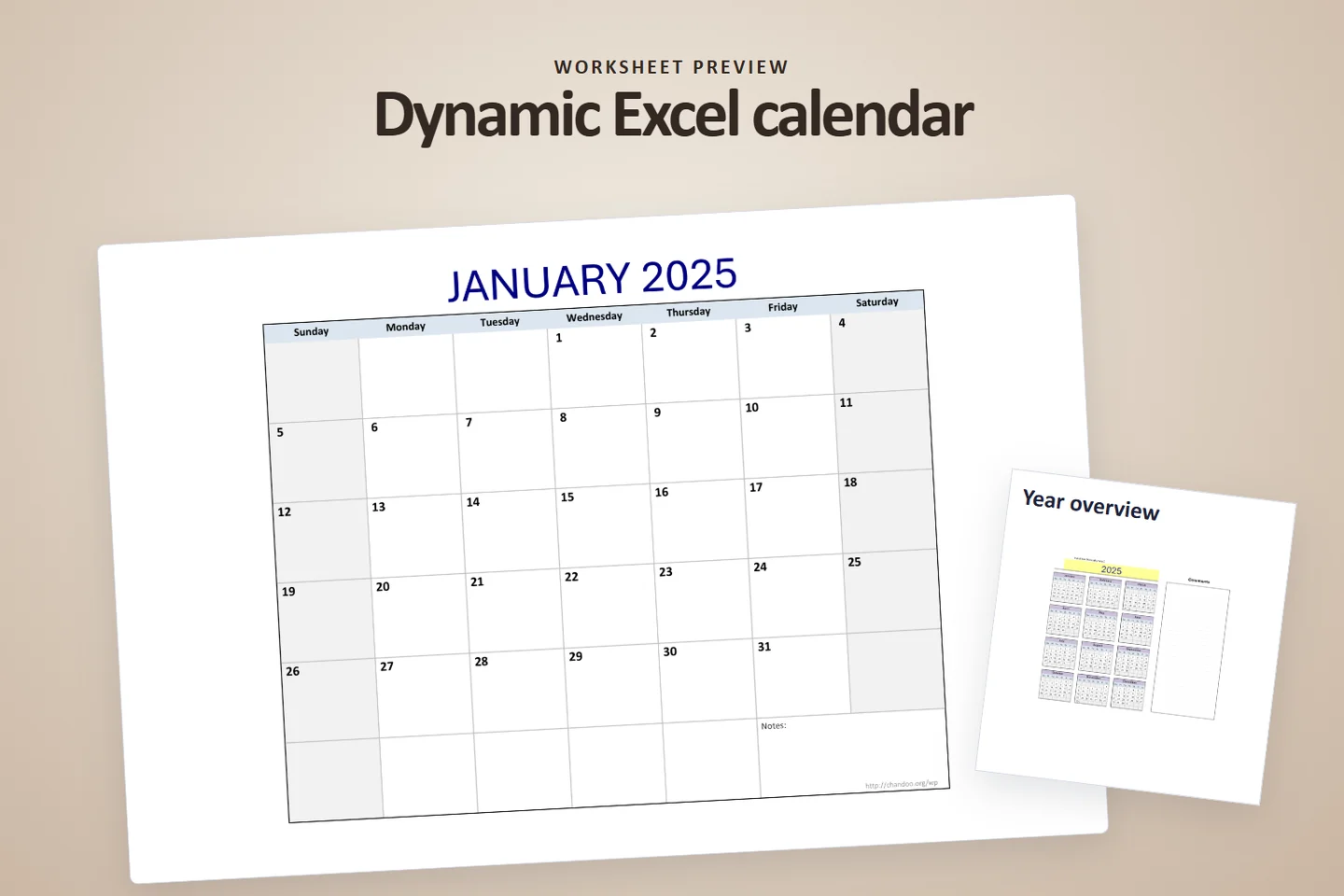
A useful monthly calendar answers three questions at a glance. What has a fixed date, what needs preparation, and where do we still have room? The Dynamic Excel Calendar template gives you a month view to plan the work and a wider view to spot crowded periods.
Give the year view and the month view different jobs
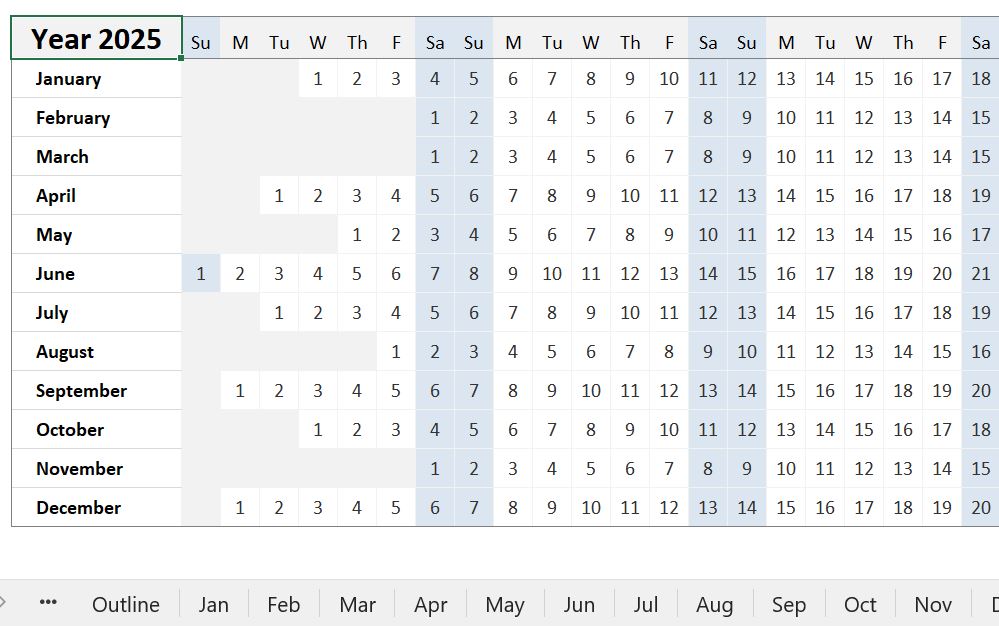
Use the annual view for things that constrain several weeks: holidays, school breaks, renewal dates, launches and travel. Use the monthly view for deadlines and commitments the team must coordinate. Keep assignments and status in a separate task list if you have several people working on the same deliverable. A compact calendar cell should let someone recognise the event in seconds.
Plan backward from fixed dates
Suppose a newsletter goes out on Friday the 24th. Put final send on the 24th, move quality review to Wednesday the 22nd, and reserve a draft handoff on Monday the 20th. If the reviewer is away on the 22nd, move the review first and check whether the draft needs to move too. Keep one short label and initials in the calendar, then put details in the task list.
| Calendar item | Example | Where to record detail |
|---|---|---|
| Fixed commitment | 24th: send newsletter | Campaign brief and send time |
| Preparation date | 22nd: approval due | Reviewer and acceptance criteria |
| Capacity signal | 21st–23rd: editor away | Team availability or shared leave calendar |
| Tentative hold | 28th: backup send | Decision date and who releases the hold |
Preserve the previous month before switching views
When a sheet reuses the same grid for another month, notes in fixed cells may stay behind as dates change. Make a copy, save a dated PDF or keep the events in a separate list before changing month or year. Test what happens with one sample note. If you print, preview the full month and check that the final week and notes fit. Microsoft’s print preview guide shows where to check the print area.
Check the dates before sharing
Confirm whether the week begins on Sunday or Monday. Check a month that starts on the last column of the grid and a leap-year February when testing a reusable file. If you build a date selector yourself, store real dates rather than strings so Excel can format them and move them correctly. See Microsoft’s DATE function reference. Check the edition details for dynamic formulas before relying on a reusable month selector.
See the Dynamic Excel Calendar template and try one complete planning cycle with your next month.