
Small Business Bookkeeping in a Spreadsheet: A Practical AI Workflow

A small business does not always need a complicated system to understand its money. A consistent spreadsheet can be a practical starting point for a freelancer, consultancy, small studio or early-stage company with straightforward cash activity. It gives each payment a place, keeps outstanding invoices visible, and lets the owner compare income, expenses and cash over time.
An AI assistant can help maintain that record. You provide a copy of the workbook, statements and receipts; ChatGPT or a suitably equipped local agent such as Claude Code proposes entries, inserts the approved rows and returns an updated file. The spreadsheet remains the working record. The owner still decides what an ambiguous payment means and checks that the books agree with the bank.
This guide shows that workflow using our Small Business Bookkeeping Excel Template. The screenshots contain a fictional business, not customer data.
Download a blank manual Excel journal with no formulas and use the AI workflow prompts below. Upgrade to PRO for linked calculations, four dashboard charts and multi-year reporting.
When a spreadsheet is enough to get started
A spreadsheet is most useful when one person owns the record, transaction volume is manageable, and the business needs a clear cash-basis management view. Think of a designer receiving project payments, a consultant paying software and contractor bills, or a digital-product seller tracking receipts and platform fees.
It becomes less suitable as the only system when you need payroll, complex sales-tax reporting, stock costing, multiple currencies, several people editing at once, strong access controls or a formal audit trail. In those situations, use accounting software or a bookkeeper and keep the spreadsheet as a supporting management view. Choosing a spreadsheet does not change your local recordkeeping or reporting obligations.
The IRS recordkeeping guide, a U.S. reference, explains that a business system should show income and expenses clearly and retain supporting records. Its discussion of single-entry records is useful background for a simple workflow; it does not make this template appropriate for every business or jurisdiction.
| Your situation | A sensible role for a spreadsheet |
|---|---|
| Freelancer with a few cash accounts | Primary management log, with monthly reconciliation and retained receipts |
| Startup testing its first paid services | Track collections, spending and owner funding separately |
| Digital seller with settlement reports | Track documented receipts and fees after understanding the payout breakdown |
| Stock-heavy shop, payroll or multiple currencies | Supporting analysis alongside a suitable accounting system |
Start with one source of truth for payments
The transaction log records money that actually moved. An invoice is a request for payment, not proof that cash arrived. A supplier bill is an amount you owe, not proof that you paid it. Keeping those events separate prevents a common mistake: counting the invoice and its bank receipt as two sales.
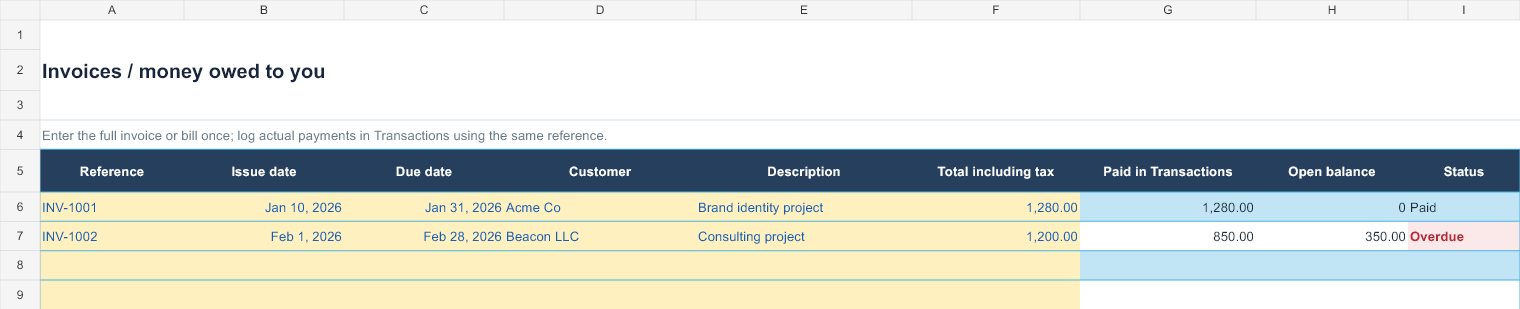
In PRO, enter each paid movement once in Transactions. Add a matching invoice or bill reference where relevant. The separate trackers calculate the remaining balance. Their outstanding totals include all years, while the dashboard’s revenue and expense figures follow the selected year and month.
| Event | Entry | Cash-basis result |
|---|---|---|
| Send an invoice for 1,200 | Invoices, with a unique reference | No revenue until a payment is recorded |
| Receive an 850 partial payment | Income transaction with that invoice reference | 850 received; invoice balance becomes 350, assuming no other payments |
| Owner contributes 1,000 | Owner contribution | Cash increases; operating profit does not |
| Move 300 from checking to savings | Transfer out and matching Transfer in | Account balances change; total cash and profit do not |
Set up the workbook before adding real records
Save the original download as a clean master. Create a working copy and remove the fictional inputs listed in Setup, including the sample product names and SKUs. Keep the formula columns. Enter the business name, currency, opening date and the balances immediately before that date. Use one currency throughout the file.
Choose a date you can support with statements. For example, if you begin on January 1, use the closing account balances from December 31 and enter transactions dated January 1 onward. Do not include opening cash again as an income transaction. Do not add transactions from before the opening date unless you deliberately rebuild the opening position as well.
Keep categories short and consistent. A service business might start with Services, Consulting, Software, Contractors and Advertising. Add new categories in unused rows on Categories. Once a label appears in historical transactions, retain it: changing the list label alone will not rewrite the old records.
Give every payment enough information to check it
A useful transaction has a date, flow type, category where relevant, description, counterparty, account, amount and source reference. The reference might be a receipt filename, statement line identifier or payment processor transaction ID. An AI assistant can help populate these fields, but the source document should remain accessible outside the spreadsheet.
In this template, cash amounts are positive; the flow type determines the direction. An income payment also needs the actual sales tax collected, including a confirmed zero when there is none. An expense needs its business-use percentage. The management expense is calculated from that percentage, while the cash balance follows the full payment. Neither the percentage nor a reserve estimate determines what is deductible on a tax return.

Use AI in two stages: propose, then apply
The most useful request is specific: “Prepare the bookkeeping entries from these documents, show anything uncertain, and wait for my review.” A broad instruction to “do my bookkeeping” gives the assistant too much room to guess.
OpenAI documents support for analysing uploaded spreadsheets and structured data. Available file tools vary by account and workspace. If your ChatGPT session supports editing and returning workbooks, attach a copy and ask for a new .xlsx output. If it can only provide a review table, use that table for a controlled import instead of assuming it changed your file.
Claude Code can edit files and run commands in a project. A local spreadsheet workflow requires an appropriate XLSX library or Excel integration and access to the intended folder. It is not an automatic bank connection, and a coding agent does not automatically preserve every Excel object. Ask it to verify the exported workbook, especially formulas, charts and validation lists.
1. Prepare a small, dated batch
Put the working workbook and the relevant source files together. Start with a week of activity rather than a year of unsorted documents. Prefer a bank CSV when available, and include receipts or settlement reports for details the bank does not show. A bank description rarely proves the sales-tax amount or the business purpose of a mixed personal expense.
Keep a backup before each batch. Share only the documents needed for the task, remove irrelevant personal information where practical, and use an AI workspace whose data settings you have checked. Local file access does not by itself mean that a cloud-based assistant processes nothing remotely.
2. Ask for a proposed-entry table
Inspect the attached bookkeeping workbook and source documents for [period]. Identify its input columns, existing records, categories and accounts.

Do not edit the file yet. Propose one row for each actual cash movement. Include the source filename and statement line or receipt reference. Compare the proposed entries with existing records and show possible duplicates separately.

Use payment dates. Do not count an invoice and its payment twice. Do not invent tax amounts, business-use percentages or missing account names. Put uncertain items in a questions list. Show the proposed cash-in and cash-out totals for each account.
Review the proposed rows against the source documents. A repeated amount on the same date can be two real purchases, so treat duplicate detection as a question, not an instruction to delete. Approve the category for an unfamiliar vendor once, then reuse that mapping consistently.
3. Apply only approved rows
Apply only the approved entries to a new dated copy of the workbook. Preserve existing data, formulas, charts, images, tables, formatting and dropdowns. Do not rebuild the file as a data-only export.

For PRO, write transactions only to A6:L1005 and optional SKUs to S6:S1005. Never overwrite calculated columns M:R. Do not change opening balances or settings. Stop if there are not enough prepared rows.

Return the updated .xlsx, a list of cells changed, source references, duplicate candidates and unresolved questions. Reopen and verify the output. State whether Excel recalculation was tested.
Download the workbook directly as an .xlsx file. The prompts above provide a starting workflow; ask your assistant to inspect the input columns before editing other sheets. The FREE workbook uses a different layout: headers are in row 9 and input rows are 10–109. It has no formulas. If an assistant calculates its manual summaries, ask it to show the arithmetic; those values will not refresh after later edits.
4. Open the returned file and check it
For PRO, open the result in Excel and confirm that the dashboard, dropdowns and four charts remain present. Compare several inserted rows to the original documents, review every warning and check the relevant invoice balances. Saving an XLSX successfully is not the same as recalculating and preserving it correctly. If the assistant could not verify an Excel feature, treat that as an outstanding check.
A worked example: one receipt, three different numbers
Suppose a customer pays 1,280, including 80 of sales tax collected on behalf of the relevant authority. Enter cash received of 1,280 and sales tax of 80. The workbook records revenue of 1,200, cash increases by 1,280, and the sales-tax collection is shown separately. If you later remit that 80, enter a Sales tax payment rather than an operating expense.
Now add a software payment of 220 that is confirmed as entirely business use. For these two movements alone, revenue is 1,200, operating expense is 220, cash-basis profit is 980, and the cash increase before any tax remittance is 1,060. Profit and the change in cash are different because the receipt included collected tax.
When a marketplace pays you a net settlement, pause before treating that deposit as the full sale. Obtain the breakdown of customer receipts, fees, tax and any withheld amounts. Do not enter both the gross settlement components and the net payout as separate sales. Credit-card payments and refunds can also need a more specific treatment than this workbook’s standard flows; resolve the mapping before entering them.
Reconcile every account at month-end
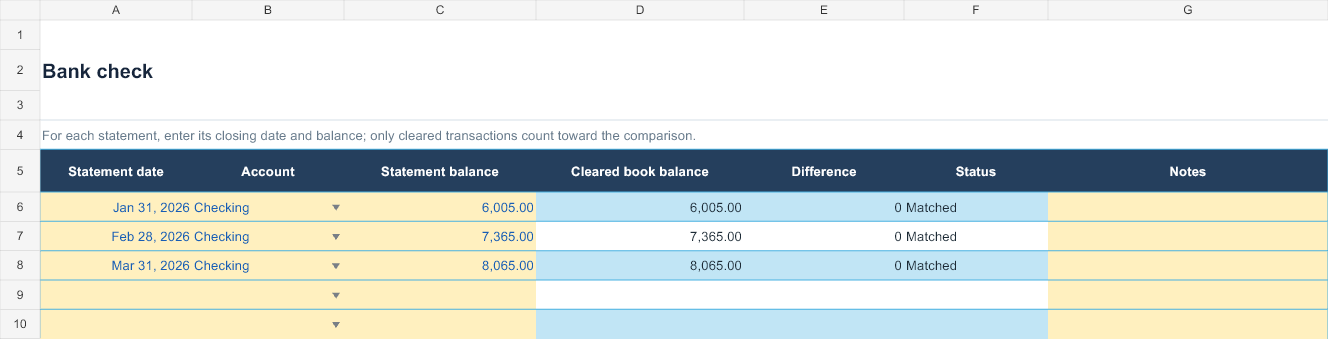
After comparing the log to the statement, mark the transactions that have cleared. In Bank check, enter the statement date, account and closing balance. PRO compares that balance with the opening position plus cleared cash movements through that date.
If the difference is not zero, inspect missing payments, duplicated rows, wrong accounts, amounts and dates. Check whether an uncleared payment belongs in the next statement. Do not change the opening balance just to remove a discrepancy. Reconcile payment accounts as well as the main bank account, and retain the statement supporting each completed check.
Read the dashboard as an owner
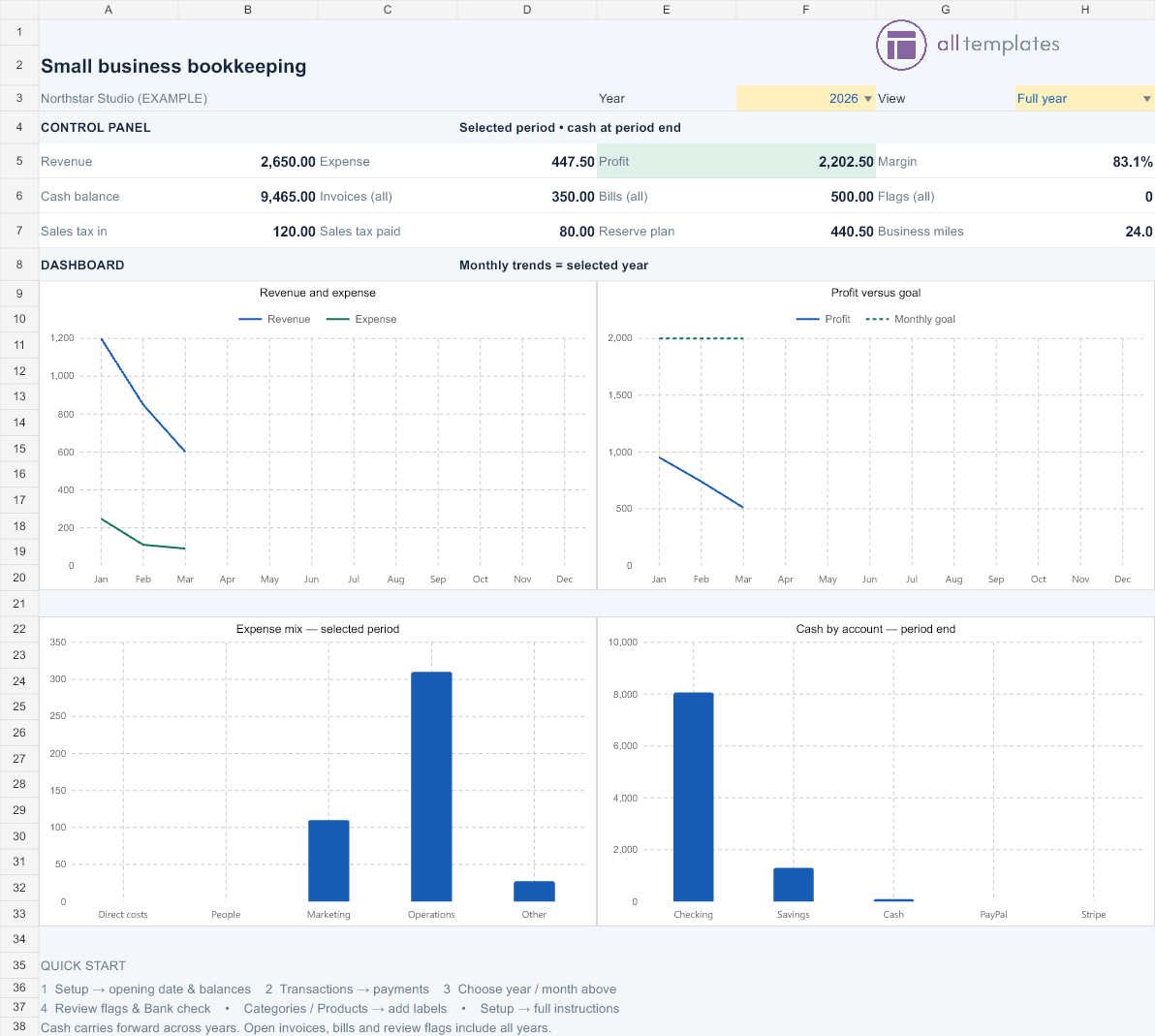
The compact Control panel shows revenue, expenses, cash-basis profit, margin and cash, alongside outstanding invoices, bills and review flags. Below it, four charts show revenue against expense, profit against the monthly goal, expense groups and cash by account.
Select a year and, if useful, a month. Period metrics and expense mix follow the selected period. The two monthly trend charts continue to show the full selected year, so you can see the context around that month. Outstanding invoice and bill totals and review flags remain all-time. Cash is the recorded balance through the selected period’s end, not necessarily today’s live bank balance.
Use it to ask concrete questions: Are collections keeping up with spending? Which expense group changed? Which invoices need follow-up? Why is profit positive while cash is falling? Owner draws, transfers, loans and tax payments may explain a cash movement that does not appear in operating profit.
Keep the history when a new year begins
In PRO, continue entering correctly dated transactions in the same file. Select the new year on Dashboard. Revenue and expenses use the new period, while cash carries forward from the fixed opening date through all recorded years. Do not re-enter last year’s closing cash as another contribution or replace the original opening balances every January.
The fictional example closes 2026 with total cash of 9,465. Selecting 2027 with no new transactions shows zero new-year revenue and still 9,465 cash. A new receipt of 107, including 7 sales tax, produces 100 revenue and 9,572 cash. Returning to 2026 leaves that year’s results unchanged. This scenario was tested in Microsoft Excel.
Add categories and products without breaking the history
PRO has space for 50 income and 50 expense categories. Add a new name in an unused row and assign each expense category a reporting group. Use unique category names across both lists. Avoid renaming historical labels unless you deliberately update and review every affected entry.
For product or service analysis, add a unique SKU and name on Products, then select that SKU in Transactions column S. The product view totals net receipts and allocated business expenses for the selected period. It does not count inventory or calculate stock valuation. A service code is useful too: separate consulting, maintenance and design work without creating a different workbook for each.
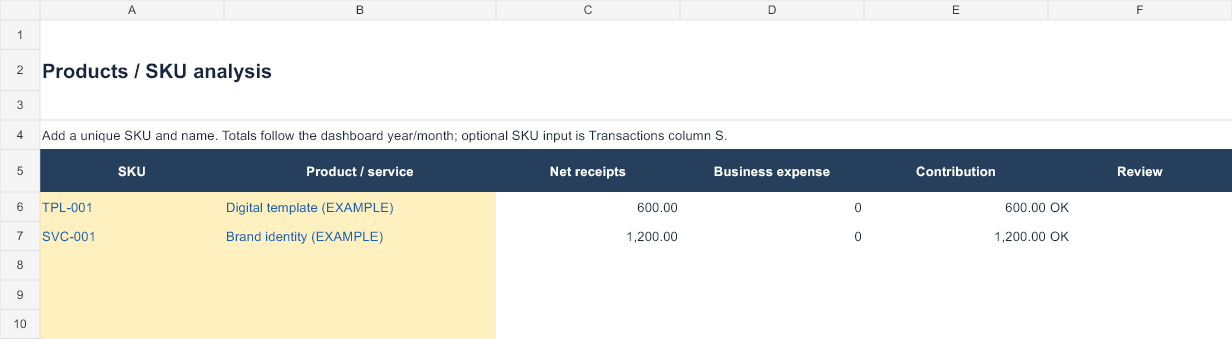
If one payment covers several SKUs, split the amount and tax across rows so the allocated amounts still total the original payment. Never repeat the entire payment for each SKU. PRO includes 1,000 prepared transaction rows and 100 rows each for invoices, bills, bank checks and mileage. Before exceeding those ranges, expand the formulas and report references and test them. Typing below the prepared range does not guarantee that a new row enters the reports.
A repeatable weekly and monthly routine
| When | Owner or assistant task | Evidence to keep |
|---|---|---|
| Each week | Collect source files; propose and approve new transactions | Receipts, statements, proposed rows and unresolved questions |
| After each approved batch | Save a new workbook version and verify changes | Dated workbook and cell-level change log |
| Each month | Reconcile all accounts and review outstanding items | Statement balances and explanations for differences |
| At year-end | Save a snapshot, review with your adviser and continue the same history | Approved snapshot and source-document archive |
The assistant reduces repetitive entry; the spreadsheet makes the result inspectable. A reliable routine needs both the source documents and a person who closes unresolved questions. That is a useful foundation even if the business later moves to accounting software.
Choose the FREE or PRO workbook
FREE includes six blank manual sheets, 100 prepared rows per log, simple flow/cleared dropdowns and upgrade banners. There are no formulas, automatic summaries or live charts. Use it to establish the habit or try the proposed-entry workflow.
PRO includes ten connected tabs, the compact control panel, four first-sheet charts, invoice and bill matching, bank checks, mileage estimates, category and SKU lists, and multi-year reporting. It includes a fictional example and Setup instructions. Both editions download directly as .xlsx files. Use the AI workflow in this article with either edition; neither includes an AI account, automatic bank feed or accounting service.
Download FREE (.xlsx) to start manually, or get the PRO Excel workbook for linked calculations and charts. For stock quantities and replenishment, see our separate Inventory Tracker.
Workbook screenshots and worked examples are fictional. Excel calculations and year-switching were tested; Google Sheets compatibility and a complete ChatGPT/Claude bookkeeping run are not claimed as tested. AI capabilities vary by account and tools. This guide describes management recordkeeping, not jurisdiction-specific tax advice.