
How to Make an Invoice in Excel and Send It With Confidence

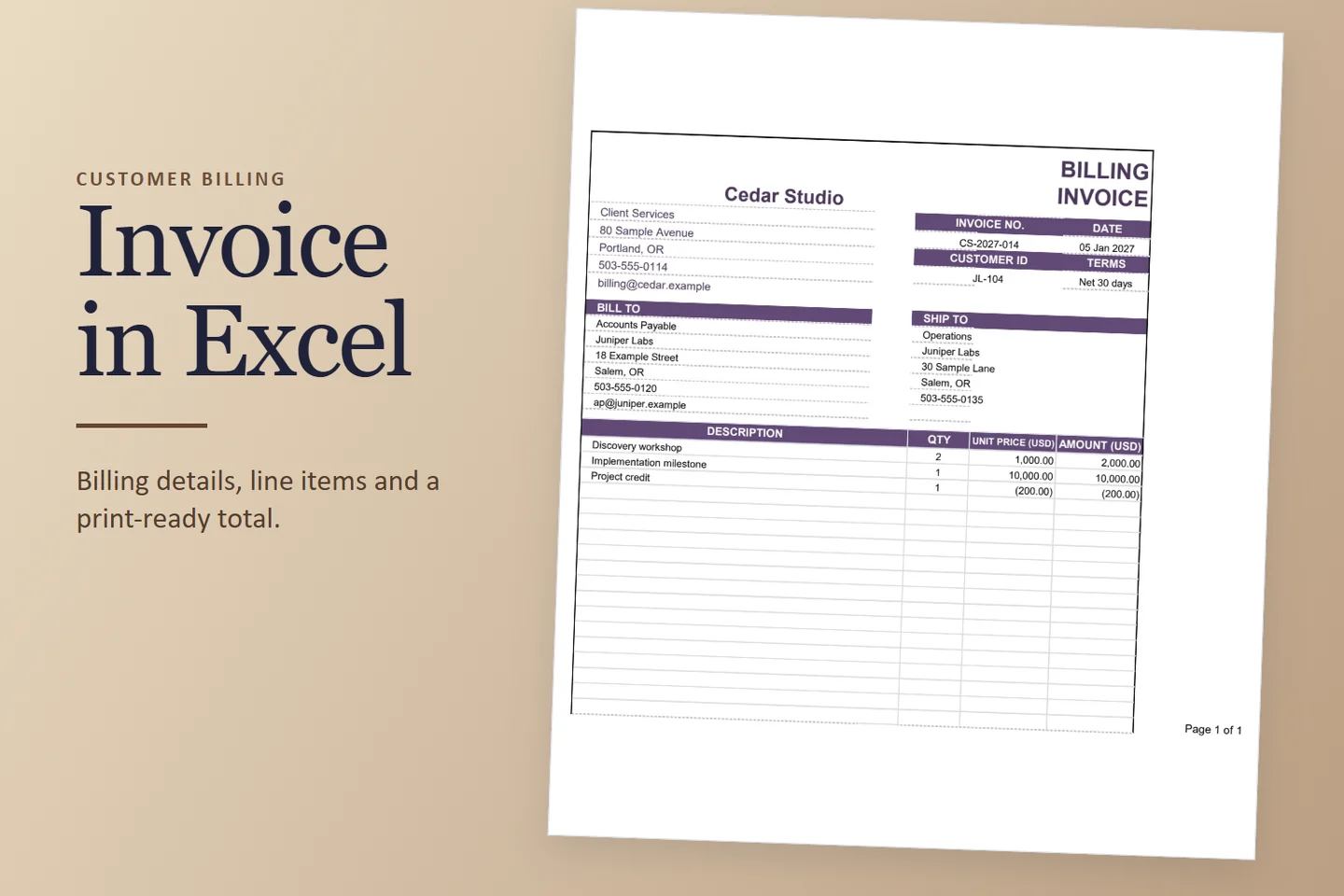
A good customer invoice lets the buyer match it to an order, verify the amount and pay without asking a follow-up question. In Excel, use a clean line-entry sheet to calculate the amount and a print view to present it. Keep the issued document and the payment record together so you can tell what is still due as weeks pass.
Gather the details before opening the spreadsheet
Start with the accepted estimate, contract or purchase order. Confirm the buying entity, billing contact, purchase order number, the agreed currency and the destination for invoices. For a small customer with one location, a named owner might handle payment. With a larger buyer, you may need a central accounts payable address and a project manager who can confirm delivery. Record both when you set up the account. A PDF sent to the person who commissioned the work may still be missing from the payment queue.
Give the invoice a unique reference before you send it. Keep a shared register if someone else can bill the same customer. Use a sequence that makes sorting and duplicate checks easy, such as INV-2027-027. Store the issue date and due date as separate fields. If the agreement specifies payment after acceptance or after month-end, verify how that date is calculated and show the result on the document. Store customer references exactly as provided, including leading zeros.
Design the entry sheet and the print view for different jobs
Put quantity, unit price and any agreed line discount in separate cells. A line formula multiplies quantity by unit price and subtracts the line discount. Show units alongside quantities, such as hours, packs or deliveries. Describe what you delivered in enough detail for a buyer to match it to the accepted work. A line that says “Services” puts that burden on the reader. A line that says “Design review, 4 hours, project A14” has a useful reference.
Keep the input formulas visible and consistent across rows. Use numeric cells for amounts and let currency formatting add symbols. Put the invoice reference, payment details and contact once in a shared input area. If you maintain a separate print view, check that it pulls those fields as well as the line items. Reopen an issued file and confirm the exact document it reproduces. Changing a shared customer lookup later should not retroactively change a saved invoice.
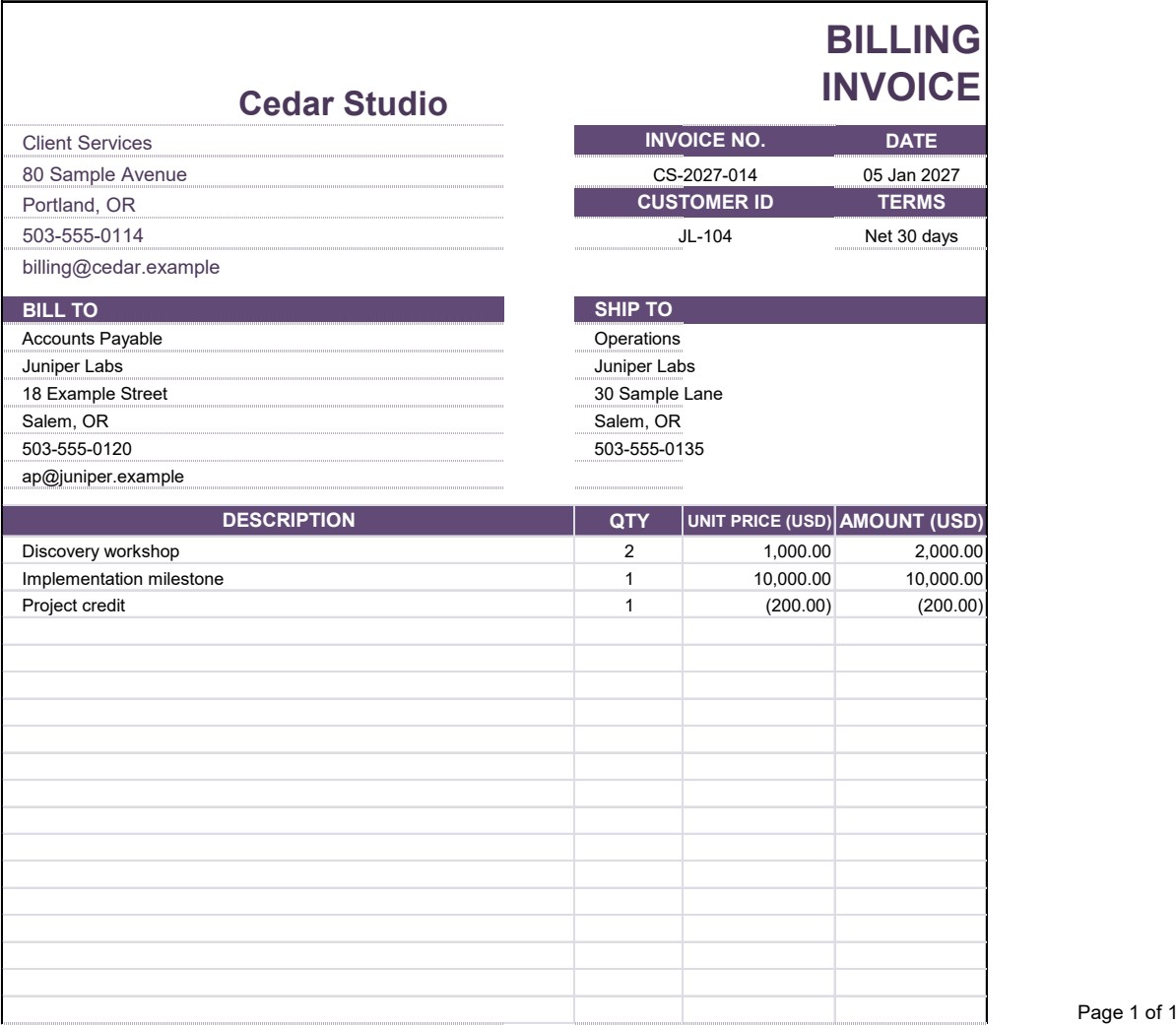
Worked example with a line discount and a deposit
Imagine that a print studio delivers a workshop, design reviews and 12 packs of materials. The customer already paid a $300 deposit applied to this invoice. The table uses an illustrative single currency and leaves tax out of the arithmetic. If your transaction requires tax, verify how the discount, deposit and relevant items affect the taxable base under the applicable rules.
| Line item | Quantity | Unit price | Line discount | Line amount |
|---|---|---|---|---|
| Workshop | 1 | $750 | $0 | $750 |
| Design review | 4 hr | $85 | $0 | $340 |
| Printed packs | 12 | $8 | $6 | $90 |
| Delivery | 1 | $25 | $0 | $25 |
| Subtotal | $1,205 |
The packs total $96 before the $6 line discount. The invoice subtotal is $1,205. If the $300 deposit has cleared and is applied against this invoice, show it as a payment already received and display $905 due. It does not reduce the unit price of the goods or services. If accounting already posted a separate deposit invoice or settlement record, ask how it should be linked before adding a second payment row. The invoice and the payment register should explain the same balance.
If the buyer challenges one line, your next step is to match it to the signed estimate or change order. Check whether the disputed piece is a pricing error, a delivery issue or a missing approval. Preserve the issued PDF. If a correction is needed, record the original invoice reference in the correction workflow and send a clear replacement or credit as appropriate to the accounting process. An edited spreadsheet alone leaves two people holding different amounts without an audit trail.
Do a three-pass check before exporting the PDF
- Commercial check. Match your customer, currency, contract reference, quantity and unit prices to the source. Verify discounts and deposits by reference. Confirm that the due date follows the actual agreement and that any instruction for payment approval is present.
- Arithmetic check. Recompute one line by hand and add the totals independently for a short invoice. Add a temporary test row to a copy of the workbook and confirm the total includes it, then discard the copy. If a line contains a negative quantity or value, trace why and how it appears on the printed page.
- Print and recipient check. Open the actual PDF. Review page breaks, clipped columns, row totals, footers and remittance details. In a multi-page invoice, check that the recipient can identify each page and that the amount due is visible. Send the version you opened to the billing contact or upload it to the approved portal.
Fit the print area to one page wide when that layout stays readable. Preview a long description and enough rows to trigger a second page. A one-page view with tiny text can be harder to pay than two readable pages. Use a filename such as INV-2027-027-Juniper-Studio.pdf and retain a copy in the folder for the issue month. Keep sensitive customer and payment information in the existing approved location.
Record issuance, due dates and later payments
Keep one register record for each issued invoice and a separate row for each receipt. Useful register fields include invoice ID, customer, issue date, contractual due date, amount issued, amount applied, remaining balance, payment owner and dispute flag. Link receipts by invoice ID whenever possible. If one transfer covers several invoices, request or verify a remittance breakdown, then allocate each portion once. Preserve the original invoice amount and calculate the remaining amount from recorded credits and applied receipts.
In the worked example, if the customer sends another $400 after the $300 deposit, the open amount becomes $505. Verify that both receipts were applied to INV-2027-027 and that the deposit was only entered once. Leave the remaining amount in the appropriate due-date bucket. The accounts receivable aging workbook is for reviewing multiple open balances and collection priorities after you have issued the individual invoices.
A payment reminder is easier to act on when it includes the invoice reference, open amount, agreed due date and sending history. If the buyer says they never received it, verify the portal or destination before resending. Put a promised date in a separate field so it can help your cash forecast without rewriting the original payment terms. When a payment clears, update the record based on the bank evidence and share an updated balance if the customer needs it.
Check for missing invoices at the end of the week
Review completed jobs or dispatched orders against the invoice register. Follow up when a delivery has evidence of completion and no invoice reference, or when a register record is marked as sent but lacks the issued file. Check duplicate references across customers and reconcile the total issued with the source if you use a separate accounting system. Record the exceptions in a short queue with the responsible person and the next review date. This catches work that never entered collections and gives the team a cleaner list to use for the weekly cash forecast.
Choose a workflow you can repeat
For occasional custom invoices, a reusable Excel template can be a practical starting point. Keep a blank master and save a working copy for each new invoice so references never overlap. Use invoice entry and print preview as separate review steps. A subscription business, a team with several people issuing invoices at once, or a buyer who requires an electronic invoicing portal may have a different source of record. Match the tool to number allocation, approval and delivery requirements before rolling it out.
What should I put in an invoice email or portal note?
Include your invoice reference, customer purchase order if applicable, the agreed due date and the amount or currency. Include a clear way to raise a billing question. Keep the title short enough that a recipient can search for the reference later. The exact document requirements depend on the buyer and jurisdiction. For an example of government guidance in a specific jurisdiction, see Australia’s guide to issuing invoices.
Can I use the same workbook for every customer?
You can use one blank template as the starting point. Save a separate issued copy per invoice with a unique reference. Check that customer-specific payment terms, addresses and purchase order details have been reset before exporting. A blank master and an invoice register are easier to maintain than trying to reconstruct old invoices from one overwritten file.
Do I send Excel or PDF?
Use the format the customer accepts. A PDF is useful for a fixed printed layout. Some organisations ask for an upload or structured invoice through a portal. Keep the editable Excel working file and the exact transmitted version. The IRS small-business recordkeeping guide discusses linking records to supporting documents in the United States.
Open the Customer Invoice Excel template. Start with the manual line sheet to review the example. Use the Pro workbook if you want a dedicated print view and remittance advice alongside the entry sheet. Fill in one real invoice, test the PDF and enter it in your register before using the workflow for the next customer.